
With Windows server hosting, you know IPv4 addresses are a premium due to IPv4 scarcity. And in previous versions of IIS, hosting multiple sites with SSL certificates required a separate IP for each site unless you had a wildcard certificate. However, thanks to Server Name Indication (SNI) with IIS 10 this is no longer an issue. With SNI enabled in the site bindings, the server includes the hostname or domain name of the site during SSL negotiation instead of the IP address. This eliminates the one-to-one IP restriction of earlier versions of IIS.
But wait, there’s more! IIS 10 SNI combined with the Web Hosting certificate store on Windows Server 2022 allows you to host hundreds or even thousands of SSL-enabled websites on a single IP address while maintaining excellent performance.
Earlier IP Limitations
Prior to IIS 8, before SNI came along, each SSL certificate required its own unique IP address, which created serious scaling problems for hosting providers and anyone running multiple secure sites. SNI changed the game by allowing multiple SSL certificates to share a single IP address through a protocol extension.
Why SSL Used To Need Separate IPs for Each Site
The issue in the original SSL handshake was related to timing. The process of creating an encrypted connection through SSL/HTTPS required the browser to send initial HTTP request headers prior to being able to use the “Host” header. Because the browser did not yet know what web site it would be connecting to, the browser could not include the “Host” header.
In order for a browser to make an HTTPS connection to a server it must first complete the SSL handshake in order to establish an encrypted connection. This means no HTTP headers could be sent until the SSL handshake was complete, including the Host header.
The server must present the client with the correct SSL certificate prior to knowing which site they wish to connect to. Since the client doesn’t know the IP address until after the SSL handshake is complete, the only option for hosting multiple sites was to have them each use different IP addresses or ports. And this was a major headache for server admins as well as consumers. If you wanted to host 50 websites with SSL certificates, you needed 50 IP addresses. Not only was this inconvenient, it was also expensive wasted resources contributing to IPv4 scarcity. With earlier versions of IIS, the only way around this limitation was using a wildcard SSL certificate like *.mydomain.com. But that only worked for subdomains of one domain name.
How Server Name Indication (SNI) Solves the Problem
Server Name Indication (SNI) works by having the client send the hostname as part of the SSL/TLS handshake. This occurs before the secure tunnel is created. The hostname of the server being requested is sent within the ClientHello message of SSL negotiation.
HTTP.sys will now be aware of the hostname being requested by the client at handshake time. HTTP.sys will then pick and present the correct certificate for that site when negotiating SSL even though both sites use the same IP address and port 443.
You may recall back in 2014 Google began giving ranking priority to sites using HTTPS. With that change alone, Google essentially mandated that all legitimate websites obtain an SSL/TLS certificate and use it across the entire site not just for a login payment page. Thanks to that move, we’ve all been able to benefit from a much more secure web. Because of this, all popular browsers now support SNI completely and it has been supported on Windows Server since IIS 8.0 on Windows Server 2012.
SNI: Hosting Multiple SSL Sites with One IP
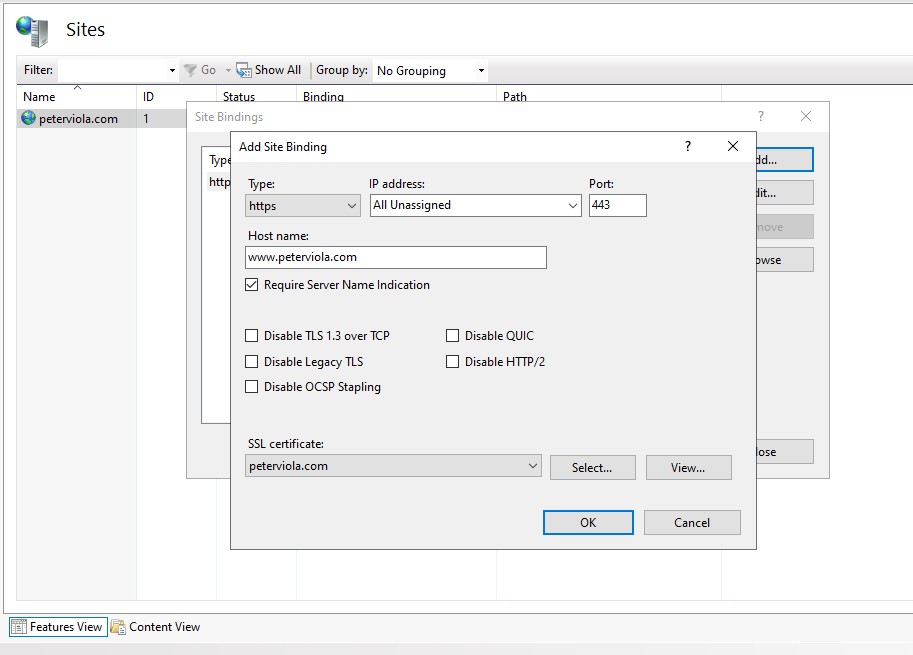
Configuring SNI bindings in IIS 10 really couldn’t be easier. When you add/edit an HTTPS binding, just click the checkbox labeled “Require Server Name Indication” in the binding settings dialog.
How is SNI Different?
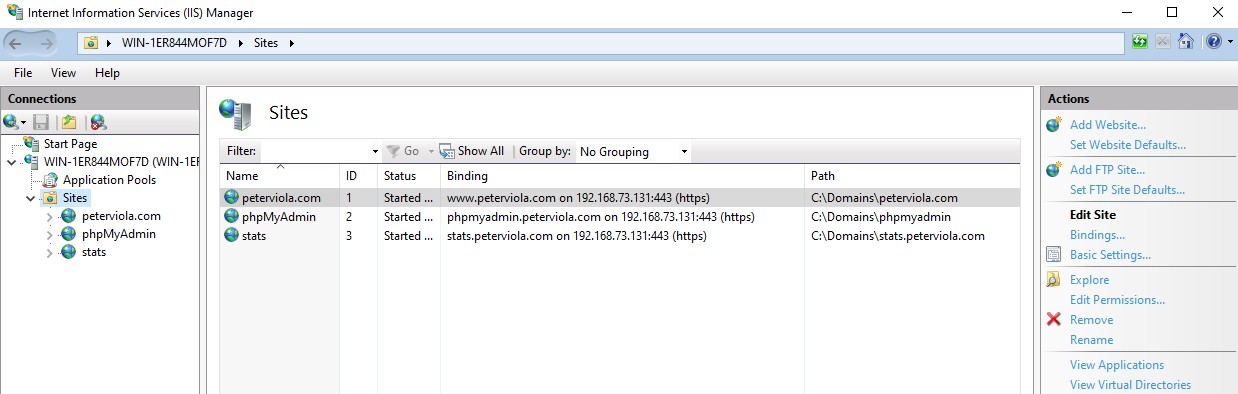
In the picture below, you can see I have 3 sites configured in IIS Manager with SSL on port 443 and two of the sites have SNI enabled. In my example, I am using a wildcard certificate but the principle is the same for single hostname certificates. The easiest way to see how SNI works on Windows Server 2022 is by opening a command prompt to look at the certificate bindings.
At the command prompt, run netsh http show sslcert. With this command, you will see one key difference in how SSL certificate bindings are listed with SNI disabled versus enabled. Without SNI enabled the cert binding is displayed in IP:Port format. This signifies that this certificate is bound to the specific IP address.
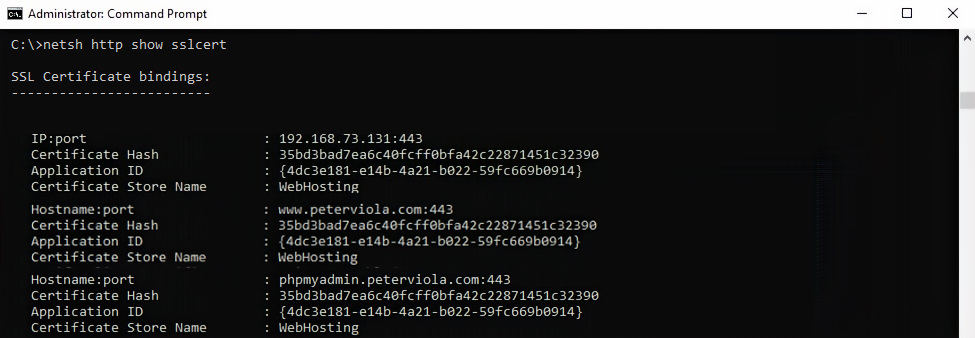
The 2nd two bindings shown above have SNI enabled and you will notice that the binding no longer shows IP:Port. Instead it is displayed as a Hostname:Port. For example, my site shows www.peterviola.com:443. When SNI is enabled, the server determines which certificate to present based off the hostname the client requests.
Creating a Wildcard Certificate
Creating a wildcard certificate is straightforward on IIS 10 and Windows Server 2022. You can either just use the IIS Manager wizard or run PowerShell commands for a more automated method. As a reminder a wildcard cert i.e *.peterviola.com allows you use 1 certificate for unlimited subdomains i.e blog.peterviola.com, www.peterviola.com or phpmyadmin.peterviola.com.
To create the cert select Server Certificates in IIS Manager and then click Create Certificate Request. Simply enter the *.yourdomain.com and fill in the other required fields. This will create the Certificate Signing Request that will be provided to a 3rd party SSL vendor.
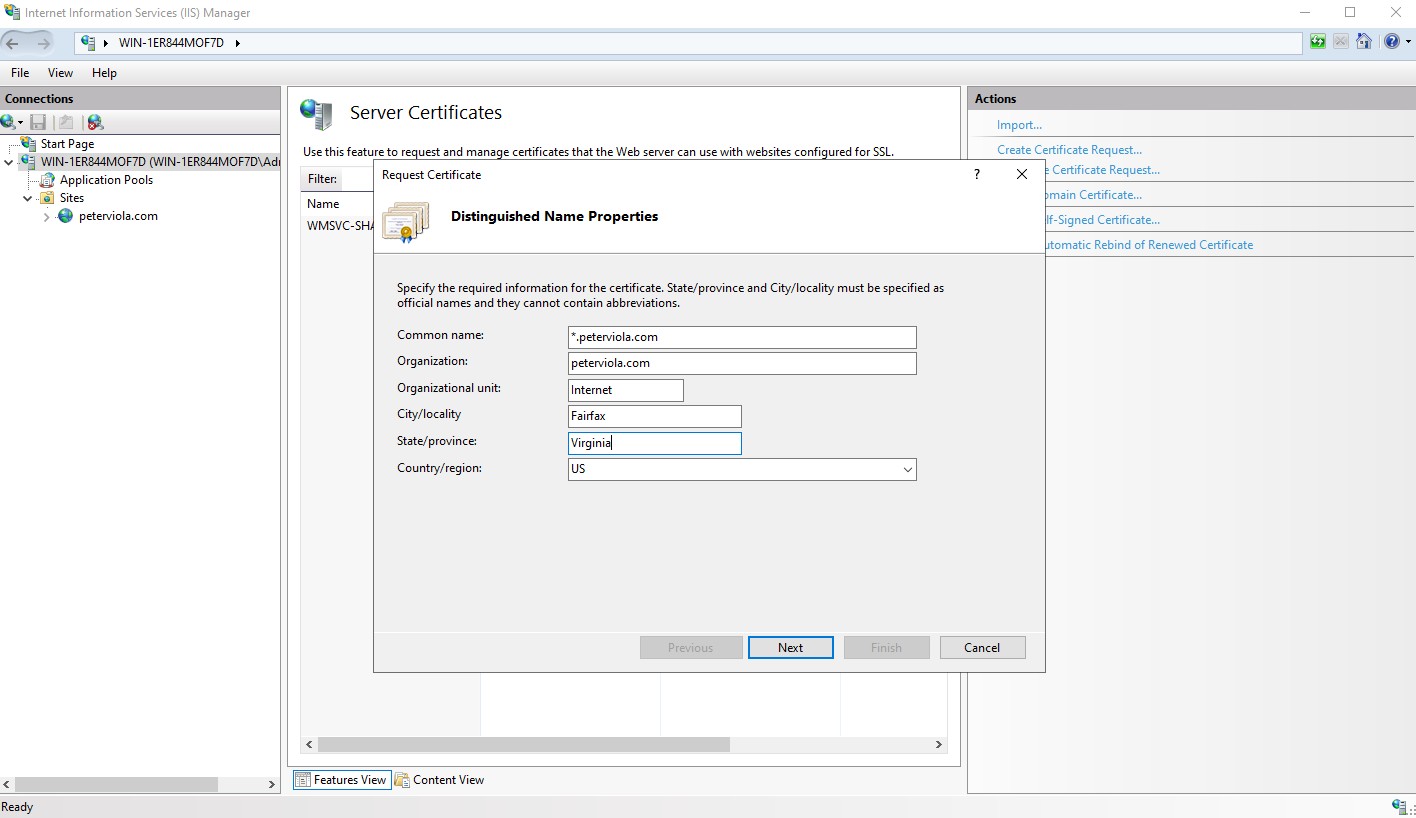
Be sure to select 2048 Bit length for the Cryptographic Service Provider settings.
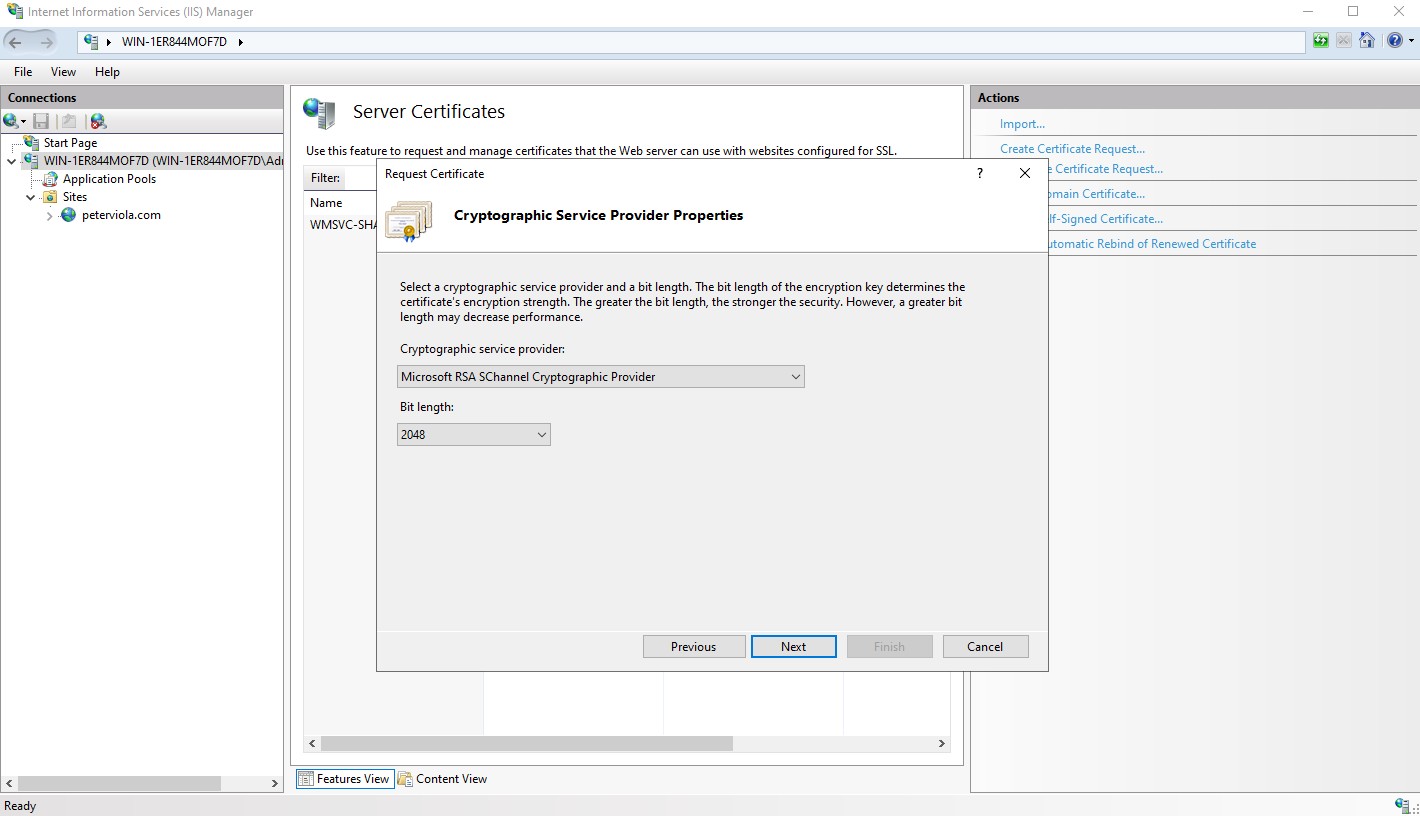
Once the CSR has been created just upload it to the SSL vendor of your choosing. After a brief validation process with the vendor, you will be able to download and install the completed certificate. To complete Installation, just return to Server Certificates and then click Complete Certificate Request.
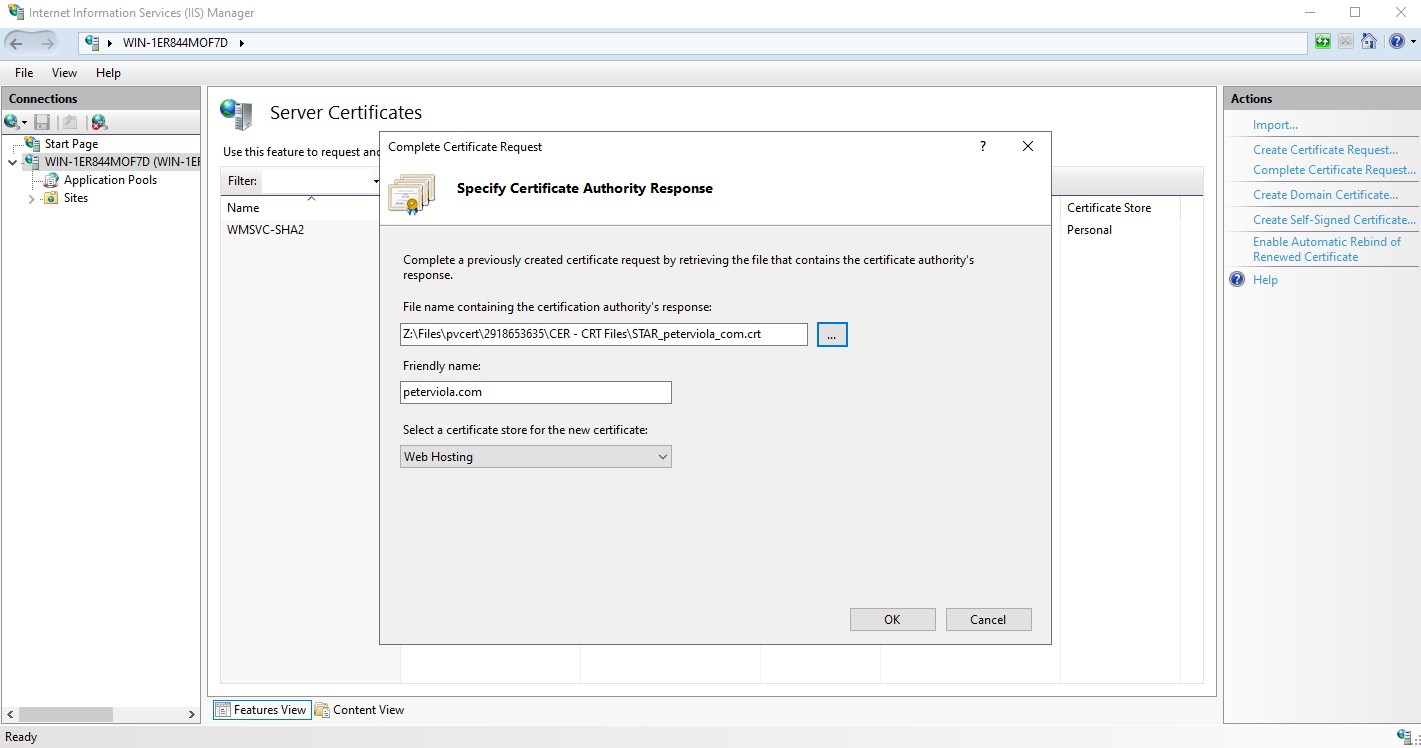
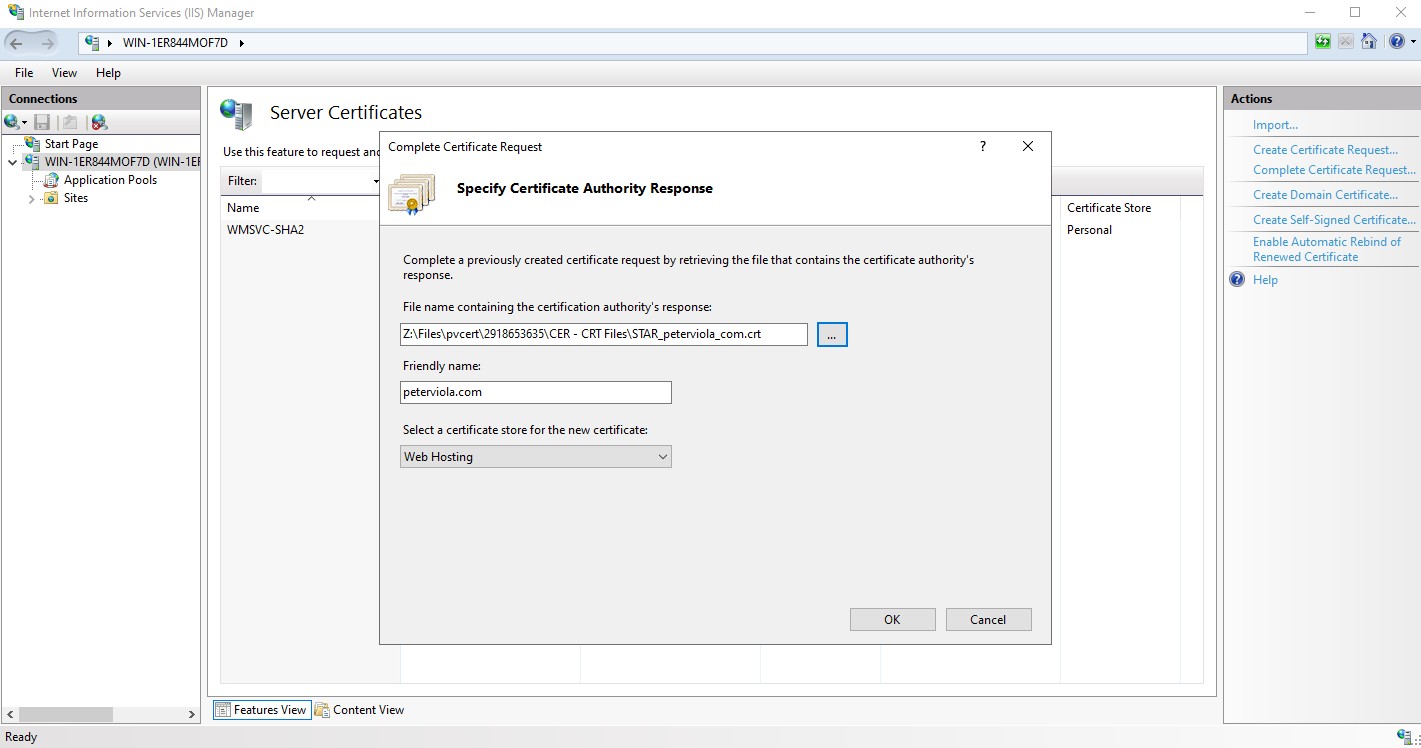
When you assign the certificate to your site bindings be sure to select the Web Hosting certificate store.
What is the Web Hosting Certificate Store on Windows Server 2022?
The Web Hosting certificate store is a specialized certificate store introduced in Windows Server 2012 with IIS 8 as an alternative to the original Personal certificate store. It is designed to handle SSL/TLS certificate hosting at scale with on-demand loading which significantly reduces the performance impact on the server. When working with dozens (or hundreds) of sites using SSL certificates, managing them all through the Personal store will impact performance on the server. The Web Hosting store imports and loads certificates differently and integrates directly into IIS.
Setting Up Certificates for Large Scale Hosting
Disk-based instead of memory-based
When you store your certificates in the Personal (MY) store, Windows loads all of them into memory during startup of IIS. That’s fine if you have 5 sites, maybe even 10. But once you start adding mass volumes of sites on a server (>30? ), you’ll run into availability bottlenecks during startup.
The Web Hosting store keeps certificates on disk until they’re accessed, vs. all at once during startup.
Existing certificates can be moved by using the MMC console. Run certlm.msc, locate your certificate, right-click and select All Tasks > Export. From here you can import the certificate into the Web Hosting store path.
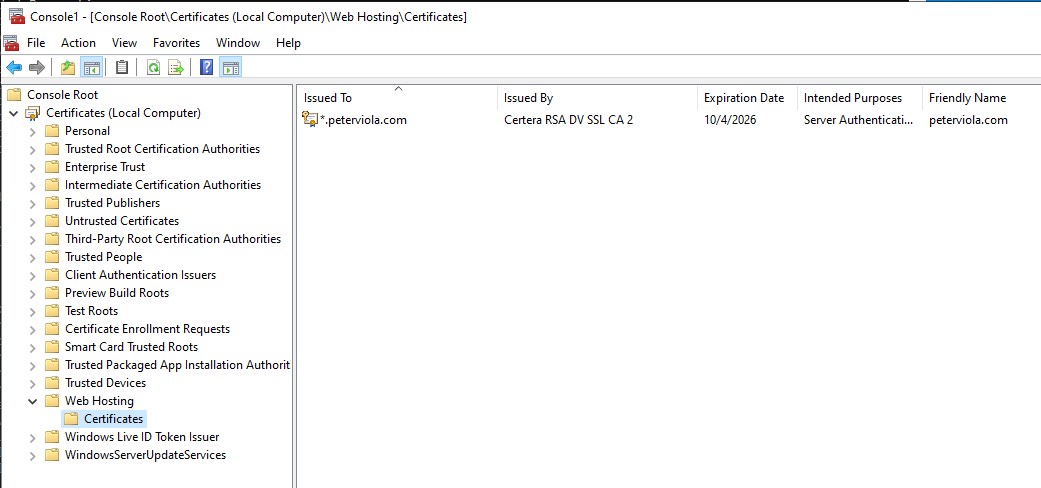
Performance Benefits and On-Demand Loading
This loading method allows for significantly faster startup times for IIS. If you have 100 sites with certificates installed in the Personal store, your IIS startup could take upwards of 2-3 minutes. With the Web Hosting store, your startup time will be under 10 seconds.
Memory usage also sees a drastic improvement. Servers I’ve worked with that have had 50+ certificates in the Personal store have shown 200MB+ memory usage for the certificates stored in memory. Because of the Web Hosting store keeping certs on disk, that memory footprint is greatly reduced.
Individual certificates will be cached by IIS after the first request. The initial connection to a site that uses SSL will take about 5-10 milliseconds longer to connect because IIS needs to load that certificate from disk. But any connections after that are served from memory at normal speeds.
Linear scaling
The Web Hosting store scales linearly based on the number of certificates you have. You can have 500 certs loaded utilizing the exact same server resources that were struggling to maintain >30 certs in the Personal store.
In Summary
Scaling websites with SSL certificates has never been easier with IIS 10 and Windows Server 2022 thanks to Server Name Indication (SNI) and the Web Hosting certificate store. With SNI you can literally host thousands of SSL based sites with 1 IP address and the Web Hosting store offers significant performance improvements on the server by storing them on disk and only loading when requested instead of loading all them at runtime. Thanks for reading.
Frequently Asked Questions
What is Server Name Indication (SNI) and its role in SSL binding on IIS 10?
- SNI allows scaling SSL certificates on servers with limited IP addresses.
- You an host hundreds of websites with SSL certificates with only 1 IP address.
What are the challenges of traditional SSL binding on a single IP address in IIS 10?
- Prior to IIS 8 only 1 IP address per SSL certificate was allowed because the TLS handshake happened before the hostname was available.
- Because IIS did not know which site was requested it needed a unique IP per site for SSL.
- Using a single IP address forced servers to consume more IPv4 addresses increasing costs and contributing to IPv4 scarcity.
What are the benefits of using a wildcard certificate on IIS 10 and Windows Server 2022?
- A wildcard certificate allows you to use SSL for unlimited subdomains of one domain name which reduces management overhead.
- You only have 1 private key and expiration date to keep track of instead of many certificates which makes renewals easier.
What is the Web Hosting certificate store and what is the performance benefit?
- The Web Hosting certificate store in IIS 10 is ideal for servers that host hundreds or even thousands of SSL certificates.
- Because it uses a different data structure than the Personal certificate store it performs better in lookup time and memory usage.
- IIS reads certificates significantly faster from the Web Hosting store when dealing with many bindings on a server.
How can you verify that SNI is configured properly on Windows Server?
- Open a command prompt and run: netsh http show sslcert to display the all the SSL certificate bindings on the server.
- When SNI is not enabled you will see certificates listed with IP:Port. When SNI is enabled, you will see Hostname:Port.


