
Recently I had to migrate some ASP.NET applications from Windows Server 2016 to Windows Server 2025. The old virtual server was being decommissioned as part of a ‘tech refresh’ and I needed to quickly migrate all the application content and IIS configuration settings to the new server without any downtime.
Your first thought may be to migrate the sites one by one but that can take a while and if your sites have specific settings in IIS you could easily miss something. When you’re in a time crunch the fastest way to setup IIS on the new server is to copy the IIS configuration files, however, the new server’s features and modules has to match or else you’ll spend hours troubleshooting errors.
In this post I’ll cover the necessary steps to quickly migrate your websites and IIS configuration between Windows Server 2016 and Windows Server 2025 without downtime by copying the IIS configuration files to the new server, using robocopy to move site content, and ensuring every feature and module on the new server matches the old configuration so the migration works on the first attempt.
Key Takeaways
- Configuration files for IIS 10 can be copied from Windows Server 2016 to Windows Server 2025 directly since both versions support IIS 10.0. However, each role service and module must be installed on both servers.
- If a module like Dynamic Content Compression is missing you’ll experience load failures of compdyn.dll, stopped application pools, and 503 errors that will only show in the Application event log.
- Restoring backups with appcmd creates a clean point to roll back to and is quicker than editing applicationHost.config manually.
How Migrate IIS 10 Configuration
Migrating your sites and IIS config to a new server is a straight forward process but spending a few minutes reviewing the configuration on both servers will save you time in the long run. Before starting the migration, open Server Manager on both servers and compare the installed IIS role services side by side. Every role service and feature enabled on Windows Server 2016 must also be enabled on Windows Server 2022.
Pay particular attention to optional components like Static Content Compression, Dynamic Content Compression, or URL Rewrite. For example, if the source server has the URL Rewrite module installed, your applicationHost.config will contain references to that module and when you try to access the a site on the new server you’ll get errors and likely cause the site’s app pool to stop.
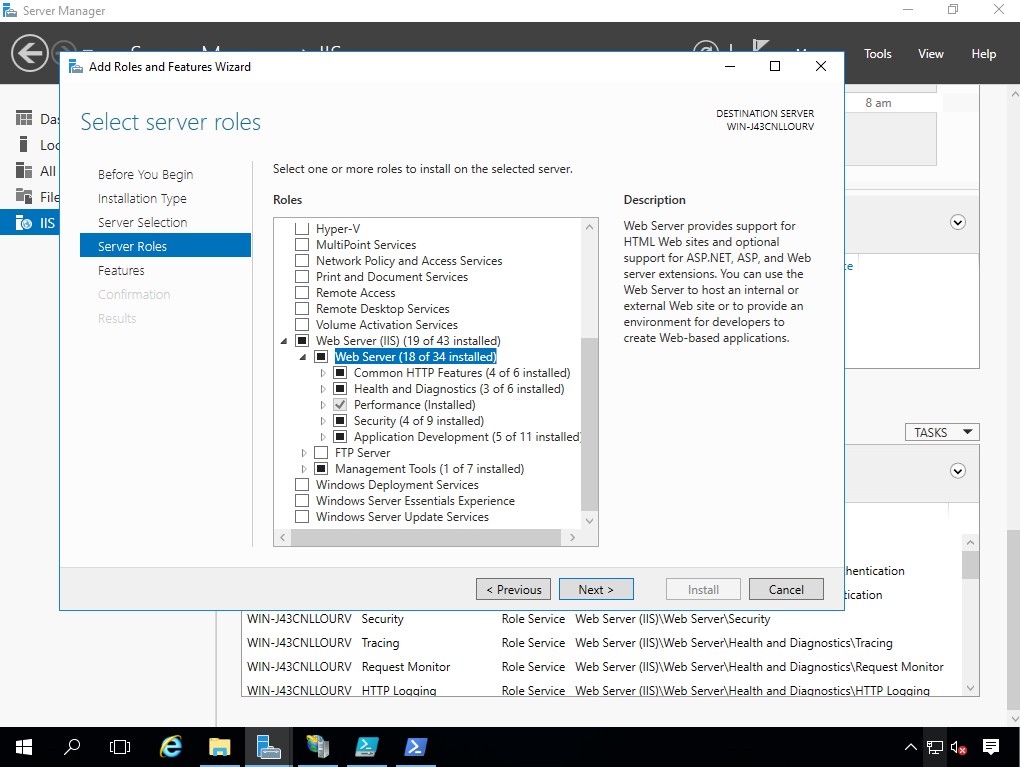
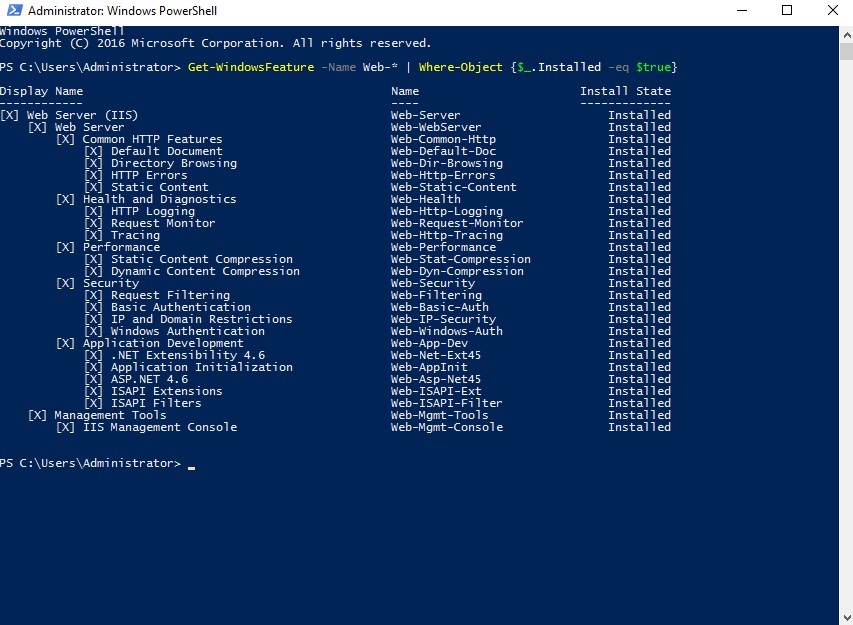
There are multiple ways to review the configuration on both servers. You could simply open Server Manager on both servers and then visually inspect Roles and Features side by side or better yet just run the PowerShell command below to quickly see what’s installed.
Get-WindowsFeature -Name Web-* | Where-Object {$_.Installed -eq $true}
Run the command on both servers and compare the output. If the new server is missing any options then go to Server Manager Roles and Features and add it before you proceed.
Locate IIS Configuration Files
As a reminder the default location for IIS settings are in C:\Windows\System32\inetsrv\config. The folder will contain three critical files:
- applicationHost.config (sites, bindings, app pools, modules)
- administration.config (IIS Manager delegation settings)
- redirection.config (shared configuration pointers, if any)
However, you should also double check the Shared Configuration settings in IIS Manager to ensure the current configuration files aren’t located somewhere else on the server.
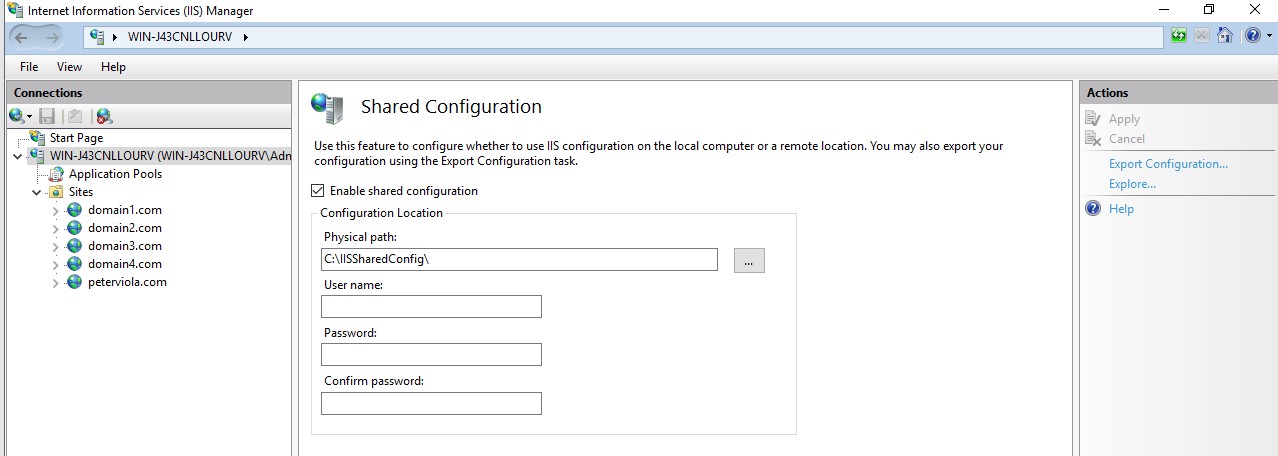
The folder specified in the Shared Configuration Physical Path will contain the same 3 files. The only difference is that they are the active configuration files. You will want to copy these files instead of the ones from the default path otherwise you could be missing critical settings. If your server is not using IIS Shared Configuration then just copy the files from the default location.
If you decide to disable Shared Configuration before copying the files to the new server remember that the configuration files will be automatically saved back to the default location.
Export IIS Role and Features
Alternatively you can export the IIS configuration from Server Manager using PowerShell with the following command.
Get-WindowsFeature -Name "Web-*" | Where-Object { $_.Installed } | Export-Clixml -Path "C:\temp\IISFeatures.xml"
Import IIS Role and Features
On the new server, run the following command to install the same IIS features that were present on the old server:
Import-Clixml -Path "C:\temp\IISFeatures.xml" | Install-WindowsFeature -Restart
Restart IIS immediately afterward:
iisreset /restartIn Summary
Migrating the IIS configuration between servers can be done quickly by either copying the configuration files or exporting setting the settings using PowerShell. To avoid errors after migration take a few minutes before starting to ensure that the Roles and Features settings on the new server match the old server’s settings. Thanks for Reading.
Frequently Asked Questions
Which IIS configuration files and folders need to be copied to fully reproduce sites, bindings, and application pools on a new server?
You need applicationHost.config, administration.config, and redirection.config which are located in C:\Windows\System32\inetsrv\config.
How do I ensure required Windows features, IIS modules, and handler mappings match between the old and new servers?
Run Get-WindowsFeature -Name Web-* | Where-Object {$_.Installed -eq $true} on both servers and compare the output. You must install any feature listed on source that’s not found on destination prior starting the migration. This also means you will need to manually install any additional modules such as URL Rewrite.
What are the common causes of errors after copying IIS configuration to a new server, and how can they be prevented?
The typical reason is a missing IIS module or role service on the target server. For instance, Dynamic Content Compression may be enabled in applicationHost.config but it isn’t installed on the destination server. IIS tries to load C: \windows\system32\inetsrv\compdyn.dll, the app pool crashes, and you get a 503. Double-check that your Server Manager features match exactly and check the Application event log after for errors.
When should I use Web Deploy instead of manually copying configuration files?
Use Web Deploy to migrate individual sites instead of the whole server configuration. If both servers have the same set of IIS features installed and you are migrating everything, copying the config files will be faster.

